
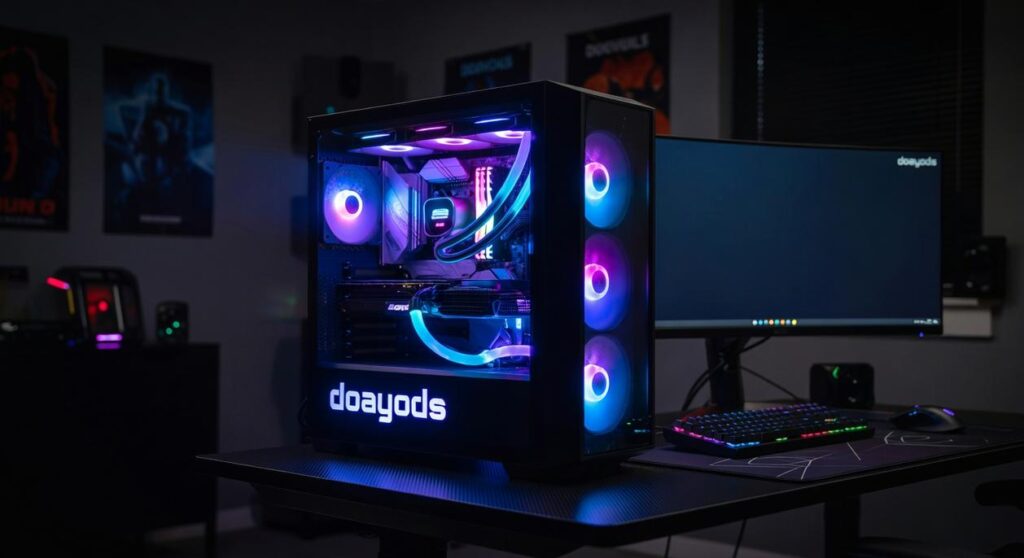
I’ve helped hundreds of people pick their first high-quality PC. And I can tell you the biggest problem isn’t finding a good computer.
It’s cutting through all the tech jargon and confusing specs that make you second-guess every decision.
You’re probably here because you want a PC that actually works for what you need. Not the cheapest option. Not the most expensive one. Just something reliable that won’t become outdated in six months.
Here’s the thing: buying a doayods pc doesn’t have to be complicated.
I work with tech frameworks and hardware performance daily. I know what matters and what’s just marketing noise. This guide strips away the confusion and gives you a clear path forward.
You’ll learn exactly how to match your needs to the right specs. No technical degree required.
By the end of this, you’ll know how to pick a PC that fits your budget and actually lasts. Not just for this year, but for the next few years too.
Let’s get straight to it.
Step 1: Define Your Primary Use Case (The Most Important Question)
You can’t build a smart PC without answering one question first.
What are you actually going to do with it?
I see people skip this step all the time. They jump straight to picking parts because some YouTuber said a certain GPU is “the best.” Then they end up with a $2,000 machine that’s overkill for what they need.
Or worse, underpowered for their actual work.
Here’s what I tell everyone who asks me about building a doayods pc. Your use case isn’t just important. It’s EVERYTHING. It determines where your money goes and what you can skip entirely.
Let me break down the three main categories:
-
General Use & Office Work – You’re browsing the web, checking email, streaming Netflix, maybe running some spreadsheets. System responsiveness is what matters here. That means a fast SSD (not a hard drive) and at least 16GB of RAM. Your CPU doesn’t need to be fancy.
-
Creative & Professional Work – Video editing, graphic design, 3D modeling, running data analysis. This is where you need real power. Look at CPUs with high core counts like Intel i7/i9 or AMD Ryzen 7/9. And you’ll want a dedicated GPU that can handle rendering without making you wait around.
-
High-Performance Gaming – Playing the latest titles at high settings and smooth frame rates. Your GPU is the star of the show here. Everything else supports it. Just make sure your CPU won’t bottleneck that expensive graphics card.
Pick one. Be honest with yourself about what you’ll actually do 90% of the time.
That decision just saved you hundreds of dollars.
Step 2: Decoding the Core Components That Drive Quality
Most people overthink this part.
They get lost in spec sheets and benchmark charts. But here’s what I’ve learned after building dozens of systems: you only need to understand five components to make a smart choice.
CPU (The Brain)
This runs everything. For most of you, an Intel Core i5 or AMD Ryzen 5 hits the sweet spot. You get solid performance without overpaying.
If you’re editing video or running heavy workloads, step up to a Core i7 or Ryzen 7. Anything beyond that? You’re probably spending money you don’t need to.
GPU (The Visual Powerhouse)
Here’s where people waste the most money.
If you’re not gaming or doing creative work, the graphics built into your CPU work fine. Seriously. You don’t need a separate card for browsing and office work.
But if you game or edit content, get a dedicated GPU. NVIDIA’s GeForce RTX series or AMD’s Radeon RX series both deliver. Pick based on your budget and the games you play.
RAM (Short-Term Memory)
16GB is standard now. That’s what you need.
Some people say 8GB is enough. Maybe five years ago. Today, even basic multitasking eats through 8GB fast.
32GB makes sense if you run virtual machines or work with large creative files. Otherwise, save your money. For most gamers, especially those who aren’t utilizing extensive virtual machines or handling large creative files, opting for 32GB of RAM may feel excessive—unless you’re one of the rare Doayods who demands that extra power for seamless multitasking and performance. For most gamers, especially those who aren’t utilizing extensive virtual machines or handling large creative files, opting for 32GB of RAM may feel excessive—unless you’re one of the rare Doayods who push the limits of performance in every aspect of their gaming setup.
Storage (SSD is Non-Negotiable)
This is where I have a strong opinion.
Never build a doayods PC without an SSD as your main drive. The difference between an SSD and old hard drive is night and day. Your system boots in seconds instead of minutes.
Get an NVMe SSD for your operating system and programs. If you need extra space for files, add a cheap hard drive later.
Power Supply (PSU)
This is the one component you can’t cheap out on.
A bad power supply can fry your entire system (I’ve seen it happen). Stick with known brands and look for at least an 80 Plus Bronze rating.
Your PSU should outlast every other component in your build.
Step 3: Pre-Built vs. Custom-Built — Which Path Is Right for You?

Here’s where most PC guides get it wrong.
They’ll tell you pre-built is for beginners and custom is for enthusiasts. Like it’s that simple.
But I’ve seen plenty of experienced users go pre-built. And I’ve watched first-timers nail their own builds without breaking a sweat.
The real question isn’t about your skill level. It’s about what you actually want from your doayods pc.
The Pre-Built Route
Pre-built systems from Dell or HP show up at your door ready to go. You plug them in and start working. One warranty covers everything.
Sounds perfect, right?
Well, here’s what they don’t advertise. Many manufacturers use proprietary motherboards and power supplies. When something breaks or you want to upgrade, you’re stuck hunting for specific parts that cost more than standard components.
Some boutique builders are different though. They use off-the-shelf parts and just charge you for assembly and testing.
Going Custom
Building your own means picking every single part. You choose the exact RAM speed, the specific motherboard features, even the case fans.
It takes time. You’ll spend hours reading reviews and checking compatibility. Then you’ll assemble everything yourself and pray it posts on the first try (it usually doesn’t, and that’s normal).
But here’s what most people miss about custom builds. You’re not just saving money. You’re learning how your system actually works. When something goes wrong later, you already know how to fix it.
The doayods bug in your system? You’ll spot it faster because you built the thing.
So which path makes sense for you? If you need a working computer tomorrow and don’t want to think about it, grab a pre-built from a reputable builder. If you want the best performance per dollar and don’t mind the learning curve, build it yourself.
Step 4: Setting a Realistic Budget and Identifying Value
Here’s where most people mess up.
They either blow their entire budget on a GPU or they cheap out on parts that actually matter.
I’m going to break this down by what you can realistically expect at different price points. And yeah, I’m talking Atlanta pricing where Micro Center on Marietta Boulevard can save you a decent chunk compared to online retailers.
Budget Tier ($600 to $900)
This gets you solid general use and entry level 1080p gaming. Nothing fancy but it works.
Here’s the move though. Skip the flashy GPU and put that money into an SSD and 16GB of RAM. Trust me on this. A system with good storage and memory feels faster than one with a better graphics card but slow everything else. For those looking to enhance their gaming experience without splurging on a flashy GPU, consider how the Update Doayods Pc emphasizes the importance of investing in an SSD and 16GB of RAM, proving that speed and efficiency can outshine mere graphics performance. If you’re aiming to boost your gaming performance without breaking the bank, consider prioritizing an SSD and 16GB of RAM, particularly for those planning to Update Doayods Pc, as this combination will significantly enhance your overall experience.
Mid Range Sweet Spot ($1000 to $1800)
This is where I tell most people to land.
You get fantastic 1080p and 1440p gaming performance. Creative work runs smooth. And you’re not overpaying for diminishing returns.
When you update doayods pc builds in this range, you’ve got real flexibility for upgrades down the line.
High End Enthusiast ($2000 and up)
This is no compromises territory. 4K gaming, professional streaming, or heavy workstation tasks. You know if you need this tier.
Where to Actually Invest
Some people say spend everything on the GPU and CPU. They think those are the only parts that matter.
But here’s what they’re missing.
Your power supply and motherboard determine how stable your system runs and whether you can upgrade later without rebuilding from scratch. I always put a good chunk of budget here. It’s not exciting but it matters more than people think.
Step 5: Final Checks Before You Buy
You’ve done the hard work.
You know what specs you need. You’ve set your budget. You’ve picked your components or narrowed down your pre-built options.
But here’s where a lot of people mess up. They skip the final checks and end up with a machine that doesn’t quite fit their setup.
I’ve seen it happen too many times. Someone buys a doayods pc without checking if it even has the right ports for their monitor. Or they ignore reviews and end up with a system that sounds like a jet engine.
Let me walk you through what actually matters before you hit that buy button.
Check Your Connectivity
Look at the back and front of the case. Count the ports.
You need enough USB-A ports for your keyboard, mouse, and whatever else you plug in regularly. Most systems come with at least four, but if you’re running external drives or a mic setup, you’ll want more.
USB-C is becoming standard. Get at least one port. You’ll use it.
For WiFi, go with WiFi 6 or 6E if you can. A study by Intel in 2022 showed WiFi 6 delivers up to 40% better speeds in crowded networks compared to older standards. That matters if you live in an apartment or work from home.
Video outputs are simple. Match them to your monitor. HDMI works for most people. DisplayPort gives you higher refresh rates if you’re gaming on a 144Hz or 240Hz screen.
Read the Reviews
I’m not talking about the five-star ratings on the product page.
Find professional reviews from sites like GamersNexus or Tom’s Hardware. They test thermals and noise levels with actual equipment. According to a 2023 analysis by PC World, nearly 30% of budget pre-builts ship with inadequate cooling that throttles performance under load.
Pay attention to what reviewers say about cooling. If they mention high temps or loud fans, that’s a red flag.
Warranty Matters More Than You Think
Most systems come with a one-year warranty. Some offer three years or more.
Here’s what I look for:
- Length of coverage (two years minimum is ideal)
- What’s actually covered (parts, labor, shipping costs)
- Response time for support tickets
A 2023 consumer report found that 18% of PC buyers needed warranty support within the first year. You want to know the company will actually help you when something breaks. With the alarming statistic that 18% of PC buyers sought warranty support within the first year, it’s crucial to choose a reliable manufacturer, especially if you want to avoid issues like the notorious Doayods Bug that can leave gamers frustrated and without assistance. In light of the alarming statistic that 18% of PC buyers sought warranty support within the first year, it’s essential to consider how well companies address issues like the notorious Doayods Bug that can plague unsuspecting gamers.
Check forums or Reddit for mentions of the company’s support. If people are complaining about weeks-long wait times or denied claims, walk away.
These checks take maybe 20 minutes. But they’ll save you from headaches later.
You’re Now Equipped to Make a Smart Purchase
You now have a complete framework for buying a high-quality personal computer.
What started as a confusing mess of specs and fear of wasting money is now clear. You know what matters and what doesn’t.
I showed you how to focus on your specific use case first. Then match the core components that deliver real performance for what you actually do.
Your money goes where it counts.
Use this guide as your final checklist before you buy. Trust the decisions you make because they’re informed ones.
Your next doayods pc will be exactly what you need. Nothing more and nothing less.
Get ready to enjoy a computer that actually fits your life.
 There is a specific skill involved in explaining something clearly — one that is completely separate from actually knowing the subject. Othlina Veythanna has both. They has spent years working with insight influx in a hands-on capacity, and an equal amount of time figuring out how to translate that experience into writing that people with different backgrounds can actually absorb and use.
Othlina tends to approach complex subjects — Insight Influx, Digital Innovation Pathways, Doayods Edge Computing Strategies being good examples — by starting with what the reader already knows, then building outward from there rather than dropping them in the deep end. It sounds like a small thing. In practice it makes a significant difference in whether someone finishes the article or abandons it halfway through. They is also good at knowing when to stop — a surprisingly underrated skill. Some writers bury useful information under so many caveats and qualifications that the point disappears. Othlina knows where the point is and gets there without too many detours.
The practical effect of all this is that people who read Othlina's work tend to come away actually capable of doing something with it. Not just vaguely informed — actually capable. For a writer working in insight influx, that is probably the best possible outcome, and it's the standard Othlina holds they's own work to.
There is a specific skill involved in explaining something clearly — one that is completely separate from actually knowing the subject. Othlina Veythanna has both. They has spent years working with insight influx in a hands-on capacity, and an equal amount of time figuring out how to translate that experience into writing that people with different backgrounds can actually absorb and use.
Othlina tends to approach complex subjects — Insight Influx, Digital Innovation Pathways, Doayods Edge Computing Strategies being good examples — by starting with what the reader already knows, then building outward from there rather than dropping them in the deep end. It sounds like a small thing. In practice it makes a significant difference in whether someone finishes the article or abandons it halfway through. They is also good at knowing when to stop — a surprisingly underrated skill. Some writers bury useful information under so many caveats and qualifications that the point disappears. Othlina knows where the point is and gets there without too many detours.
The practical effect of all this is that people who read Othlina's work tend to come away actually capable of doing something with it. Not just vaguely informed — actually capable. For a writer working in insight influx, that is probably the best possible outcome, and it's the standard Othlina holds they's own work to.